# Check, install, and load required packages
# Set CRAN mirror first
options(repos = c(CRAN = "https://cran.rstudio.com/"))

required_packages <- c("tidyverse", "dplyr", "foreach", "doParallel")
new_packages <- required_packages[!(required_packages %in% installed.packages()[, "Package"])]
if (length(new_packages)) install.packages(new_packages, dependencies = TRUE)
# invisible(lapply(required_packages, library, character.only = TRUE))
update.packages(ask = FALSE, checkBuilt = TRUE)ECON 4370 / 6370 Computing for Economics
Lecture 1: R Programming
Zhan Gao
24 August 2026
Overview
Checklist and Tips
☑ Install R and RStudio (or Positron if you prefer a VSC experience).
☑ Install/update the following packages:
- Learn coding the hard way, especially when you are just starting out
- Slightly more painful in the beginning, but much better payoff in the long-run
Use R
Basic arithmetic
R is a powerful calculator and recognizes all of the standard arithmetic operators:
Basic arithmetic (cont.)
Basic arithmetic (cont.)
We can also invoke modulo operators (integer division & remainder).
- Very useful when dealing with time, for example.
Logical operators
R also comes equipped with a full set of logical operators (and Boolean functions), which follow standard programming protocol. For example:
Logical operators (cont.)
## [1] TRUE## [1] FALSE FALSE FALSE FALSE FALSE FALSE FALSE FALSE FALSE FALSEetc..
You can read more about these logical operators here and here.
Logical operators: Order of precedence
Much like standard arithmetic, logic statements follow a strict order of precedence. Logical operators (>, ==, etc) are evaluated before Boolean operators (& and |). Failure to recognise this can lead to unexpected behaviour…
What’s happening here is that R is evaluating two separate “logical” statements:
1 > 0.5, which is is obviously TRUE.2, which is TRUE(!) because R is “helpfully” converting it toas.logical(2).
Logical operators: Negation: !
We use ! as a short hand for negation. This will come in very handy when we start filtering data objects based on non-missing (i.e. non-NA) observations.
Logical operators: Value matching: %in%
To see whether an object is contained within (i.e. matches one of) a list of items, use %in%.
There’s no equivalent “not in” command, but how might we go about creating one?
- Hint: Think about negation…
Logical operators (cont.)
Evaluation
We’ll get to assignment shortly. However, to preempt it somewhat, we always use two equal signs for logical evaluation.
Error in 1 = 1 : invalid (do_set) left-hand side to assignment!= is a ! followed by a =. It is rendered as a != b/c of the font I’m using here.
Logical operators: Evaluation caveat with Floating-point numbers
What do you think will happen if we evaluate 0.1 + 0.2 == 0.3?
Problem: Computers represent numbers as binary (i.e. base 2) floating-points. More here.
- Fast and memory efficient, but can lead to unexpected behaviour.
- Similar to the way that standard decimal (i.e. base 10) representation can’t precisely capture certain fractions (e.g. \(\frac{1}{3} = 0.3333...\)).
Logical operators: Evaluation caveat with Floating-point numbers
Solution: Use all.equal() for evaluating floats (i.e fractions).
all.equal()was built to check “near equality” rather than strict bitwise equality. It checks whether two numbers are equal within a small tolerance, typicallysqrt(.Machine$double.eps) ≈ 1.5e-8.
Assignment
In R, we can use either = or <- to handle assignment.1
1 The <- is really a < followed by a -. It just looks like one thing b/c of the font I’m using here.
Assignment with <-
<- is normally read aloud as “gets”. You can think of it as a (left-facing) arrow saying assign in this direction.
Assignment (cont.)
Assignment with =
You can also use = for assignment.
Most R users (purists?) seem to prefer <- for assignment, since = also has specific role for evaluation within functions.
- We’ll see lots of examples of this later.
- But…
=is quicker to type and is more intuitive if you’re coming from another programming language.
More discussion about <- vs = here and here.
Bottom line: Use whichever you prefer. Just be consistent.
Help
For more information on a (named) function or object in R, consult the “help” documentation. For example:
Or, more simply, just use ? or ??:
Aside 1: Comments in R are demarcated by #.
- Hit
Ctrl+Shift+cin RStudio to (un)comment whole sections of highlighted code.
Aside 2: See the Examples section at the bottom of the help file?
- You can run them with the
example()function. Try it:example(plot).
Help: Vignettes
For many packages, you can also try the vignette() function, which will provide an introduction to a package and it’s purpose through a series of helpful examples.
- Try running
vignette("dplyr")in your console now.
I highly encourage reading package vignettes if they are available.
- They are often the best way to learn how to use a package.
One complication is that you need to know the exact name of the package vignette(s).
- E.g. The
dplyrpackage actually has several vignettes associated with it: “dplyr”, “window-functions”, “programming”, etc. - You can run
vignette()(i.e. without any arguments) to list the available vignettes of every installed package installed on your system. - Or, run
vignette(all = FALSE)if you only want to see the vignettes of any loaded packages.
Help: Demos
Similar to vignettes, many packages come with built-in, interactive demos.
To list all available demos on your system:
Objects
Object-oriented programming (OOP) in R
R’s approach to object-oriented programming (OOP), which is often summarised as:
“Everything is an object and everything has a name.”
There are actually multiple OOP frameworks in R.
- S3, S4, R6…
- Quite different philosophies from other languages like Python … functions are more native …
I’m being loose and sloppy here and won’t systematically discuss OOP as in a computer science class.
- Hadley Wickham’s “Advanced R” provides a very thorough overview of the main issues.
Instead, I will walk you through some of the basic objects and talk about some special features as we go along.
What are objects?
It’s important to emphasise that there are many different types (or classes) of objects.
We’ll revisit the issue of “type” vs “class” in a slide or two. For the moment, it is helpful simply to name some objects that we’ll be working with regularly:
- vectors
- matrices
- data frames
- lists
- functions
- etc.
Vectors
The c() function creates vectors. This is one of the objects we’ll use to store data.
Shortcut for consecutive numbers:
Vectors (cont.)
Basic algebraic operations all work entrywise on vectors.
Vectors (cont.)
Some useful vector functions:
Matrices
Matrices are just collections of several vectors of the same length.
Matrices (cont.)
Matrices (cont.)
Matrix algebra works the same way as vector algebra - it’s all done entrywise with the * and + operators. If you want to do matrix multiplication, use %*%.
Matrices (cont.)
Other often used matrix operations:
For more operations, check out https://www.statmethods.net/advstats/matrix.html.
Data frames
data.frame is a two-dimensional table that stores the data, similar to a spreadsheet in Excel. A matrix is also a two-dimensional table, but it only accommodates one type of elements. Real world data can be a collection of integers, real numbers, characters, categorical numbers and so on. Data frame is the best way to organize data of mixed type in R.
Lists
A vector only contains one type of elements. list is a basket for objects of various types. It can serve as a container when a procedure returns more than one useful object. For example, recall that when we invoke eigen, we are interested in both eigenvalues and eigenvectors, which are stored into $value and $vector, respectively.
What are objects? (cont.)
Most likely, you already have a good idea of what distinguishes these objects and how to use them.
- However, bear in mind that there subtleties that may confuse while you’re still getting used to R.
- E.g. There are different kinds of data frames. We’ll soon encounter “tibbles” and “data.tables”, which are enhanced versions of the standard data frame in R.
What are objects? (cont.)
Each object class has its own set of rules (“methods”) for determining valid operations.
- For example, you can perform many of the same operations on matrices and data frames. But there are some operations that only work on a matrix, and vice versa.
- At the same time, you can (usually) convert an object from one type to another.
Object class, type, and structure
Use the class, typeof, and str commands if you want understand more about a particular object.
## [1] "data.frame"## [1] "list"## 'data.frame': 2 obs. of 2 variables:
## $ x: int 1 2
## $ y: int 3 4PS — Confused by the fact that typeof(d) returns “list”? See here.
Object class, type, and structure (cont.)
Of course, you can always just inspect/print an object directly in the console.
- E.g. Type
dand hit Enter.
The View() function is also very helpful. This is the same as clicking on the object in your RStudio Environment pane. (Try both methods now.)
- E.g.
View(d).
Global environment
Let’s go back to the simple data frame that we created a few slides earlier.
Now, let’s try to run a regression1 on these “x” and “y” variables:
1 Yes, this is a dumb regression with perfectly co-linear variables. Just go with it.
Uh-oh. What went wrong here? (Answer on next slide.)
Global environment (cont.)
The error message provides the answer to our question:
## Error:
## ! object 'y' not foundR can’t find the variables that we’ve supplied in our Global Environment:
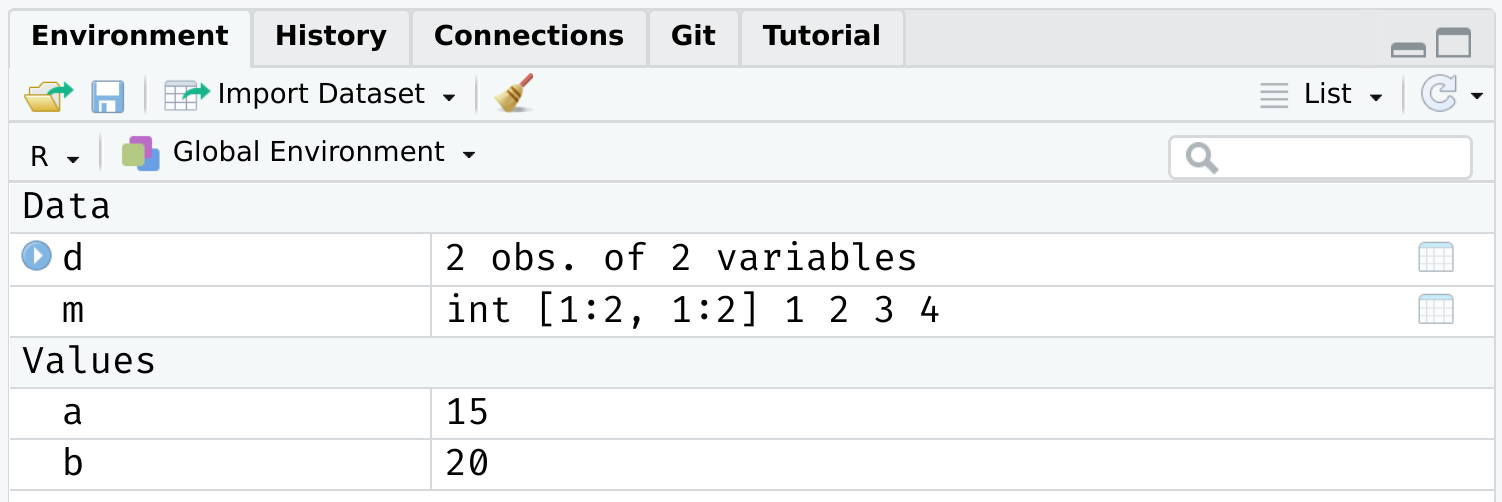
Put differently: Because the variables “x” and “y” live as separate objects in the global environment, we have to tell R that they belong to the object d.
- Think about how you might do this before clicking through to the next slide.
Global environment (cont.)
There are a various ways to solve this problem. One is to simply specify the datasource:
Global environment (cont.)
I wanted to emphasize this global environment issue, because it is something that Stata users (i.e. many economists) struggle with when they first come to R.
- In Stata, the entire workspace essentially consists of one (and only one) data frame. So there can be no ambiguity where variables are coming from.
- However, that “convenience” comes at a really high price IMO. You can never read more than two separate datasets (let alone object types) into memory at the same time, have to resort all sorts of hacks to add summary variables to your dataset, etc.
- Speaking of which…
Working with multiple objects
As I keep saying, R’s ability to keep multiple objects in memory at the same time is a huge plus when it comes to effective data work. E.g. We can copy an exiting data frame, or create new one entirely from scratch. Either will exist happily with our existing objects in the global environment.
Again, however, it does mean that you have to pay attention to the names of those distinct data frames and be specific about which objects you are referring to.
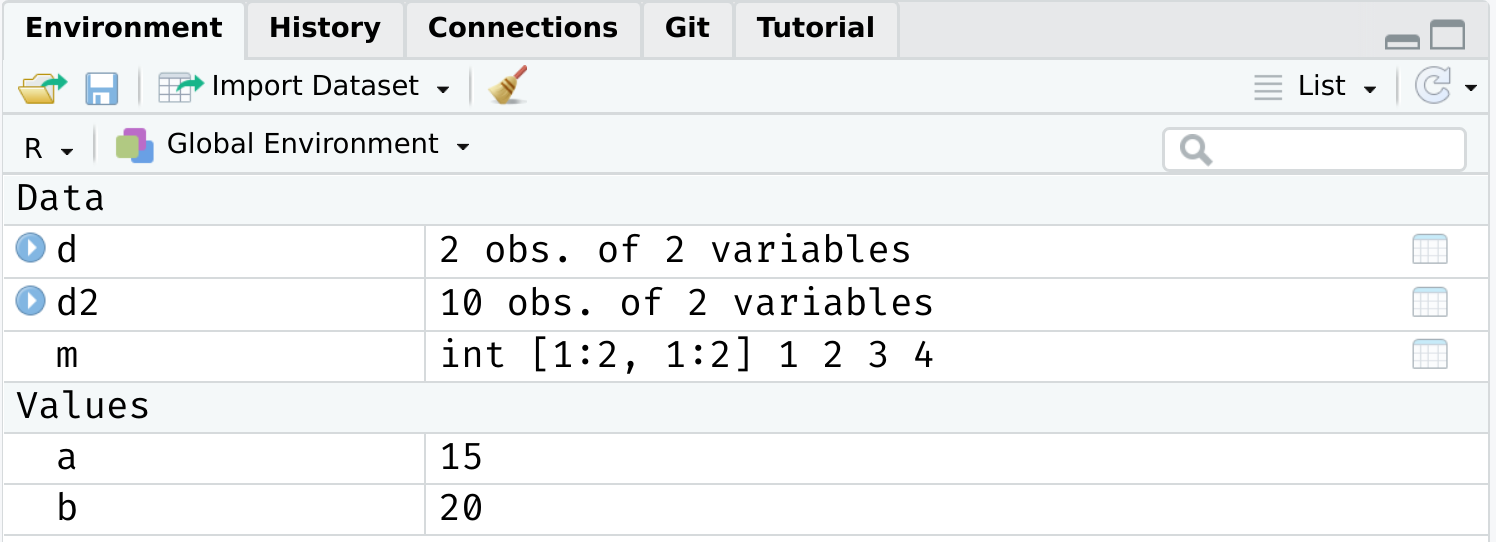
“Everything has a name”
Reserved words
We’ve seen that we can assign objects to different names. However, there are a number of special words that are “reserved” in R.
- These are are fundamental commands, operators and relations in base R that you cannot (re)assign, even if you wanted to.
- We already encountered examples with the logical operators.
See here for a full list, including (but not limited to):
if, else, while, function, for, TRUE, FALSE, NULL, Inf, NaN, NA…
Semi-reserved words
In addition to the list of strictly reserved words, there is a class of words and strings that I am going to call “semi-reserved”.
- These are named functions or constants (e.g.
pi) that you can re-assign if you really wanted to… but already come with important meanings from base R.
Arguably the most important semi-reserved character is c(), which we use for concatenation; i.e. creating vectors and binding different objects together.
Semi-reserved words (cont.)
In this case, thankfully nothing. R is “smart” enough to distinguish between the variable c = 4 that we created and the built-in function c() that calls for concatenation.
However, this is still extremely sloppy coding. R won’t always be able to distinguish between conflicting definitions. And neither will you. For example:
Bottom line: Don’t use (semi-)reserved characters!
Namespace conflicts
A similar issue crops up when we load two packages, which have functions that share the same name. E.g. Look what happens we load the dplyr package.
##
## Attaching package: 'dplyr'
## The following objects are masked from 'package:stats':
##
## filter, lag## The following objects are masked from 'package:base':
##
## intersect, setdiff, setequal, unionThe messages that you see about some object being masked from ‘package:X’ are warning you about a namespace conflict.
- E.g. Both
dplyrand thestatspackage (which gets loaded automatically when you start R) have functions named “filter” and “lag”.
Namespace conflicts (cont.)
The potential for namespace conflicts is a result of the OOP approach.1
- Also reflects the fundamental open-source nature of R and the use of external packages. People are free to call their functions whatever they want, so some overlap is only to be expected.
1 Similar problems arise in virtually every other programming language (Python, C, etc.)
Whenever a namespace conflict arises, the most recently loaded package will gain preference. So the filter() function now refers specifically to the dplyr variant.
But what if we want the stats variant? Well, we have two options:
- Temporarily use
stats::filter() - Permanently assign
filter = stats::filter
Solving namespace conflicts
1. Use package::function()
We can explicitly call a conflicted function from a particular package using the package::function() syntax. For example:
Solving namespace conflicts (cont.)
We can also use :: for more than just conflicted cases. E.g. Being explicit about where a function (or dataset) comes from can help add clarity to our code. Try these lines of code in your R console.
## # A tibble: 87 × 14
##   name      height  mass hair_color skin_color eye_color birth_year sex   gender
##   <chr>      <int> <dbl> <chr>      <chr>      <chr>          <dbl> <chr> <chr>
## 1 Luke Sky…    172    77 blond      fair       blue            19   male  mascu…
## 2 C-3PO        167    75 <NA>       gold       yellow         112   none  mascu…
## 3 R2-D2         96    32 <NA>       white, bl… red             33   none  mascu…
## 4 Darth Va…    202   136 none       white      yellow          41.9 male  mascu…
## # ℹ 83 more rows
## # ℹ 5 more variables: homeworld <chr>, species <chr>, films <list>,
## # vehicles <list>, starships <list>## [1] "1,000" "1,000,000"Solving namespace conflicts (cont.)
2. Assign function = package::function
A more permanent solution is to assign a conflicted function name to a particular package. This will hold for the remainder of your current R session, or until you change it back. E.g.
Solving namespace conflicts (cont.)
General advice
I would generally advocate for the temporary package::function() solution.
Another good rule of thumb is that you want to load your most important packages last. (E.g. Load the tidyverse after you’ve already loaded any other packages.)
Other than that, simply pay attention to any warnings when loading a new package and ? is your friend if you’re ever unsure. (E.g. ?filter will tell you which variant is being used.)
- In truth, problematic namespace conflicts are rare. But it’s good to be aware of them.
User-side namespace conflicts
A final thing to say about namespace conflicts is that they don’t only arise from loading packages. They can arise when users create their own functions with a conflicting name.
- E.g. If I was naive enough to create a new function called
c().
In a similar vein, one of the most common and confusing errors that even experienced R programmers run into is related to the habit of calling objects “df” or “data”… both of which are functions in base R!
- See for yourself by typing
?dfor?data.
Again, R will figure out what you mean if you are clear/lucky enough. But, much the same as with c(), it’s relatively easy to run into problems.
- Case in point: Triggering the infamous “object of type closure is not subsettable” error message. (See from 1:45 here.)
Indexing
Option 1: []
We’ve already seen an example of indexing in the form of R console output. For example:
The [1] above denotes the first (and, in this case, only) element of our output.1 In this case, a vector of length one equal to the value “3”.
Option 1: [] (cont.)
More importantly, we can also use [] to index objects that we create in R.
Option 1: [] (cont.)
It also works on larger arrays (vectors, matrices, data frames, and lists). For example:
## # A tibble: 1 × 1
##   name
##   <chr>
## 1 Luke SkywalkerOption 1: [] (cont.)
We haven’t covered them properly yet (patience), but lists are a more complex type of array object in R.
- They can contain a random assortment of objects that don’t share the same class, or have the same shape (e.g. rank) or common structure.
- E.g. A list can contain a scalar, a string, and a data frame. Or you can have a list of data frames, or even lists of lists.
The relevance to indexing is that lists require two square brackets [[]] to index the parent list item and then the standard [] within that parent item. An example might help to illustrate:
Option 2: $
Lists provide a nice segue to our other indexing operator: $.
Option 2: $
Notice how our (named) parent list objects are demarcated: “$a”, “$b” and “$c”.
Option 2: $ (cont.)
We can call these objects directly by name using the dollar sign, e.g.
## [1] "hello"## [1] 3## [1] 1 2 3 4 5Aside: Typing View(my_list) (or, equivalently, clicking on the object in RStudio’s environment pane) provides a nice interactive window for exploring the nested structure of lists.
Option 2: $ (cont.)
The $ form of indexing also works (and in the manner that you probably expect) for other object types in R.
In some cases, you can also combine the two index options.
- E.g. Get the 1st element of the “name” column from the starwars data frame.
However, note some key differences between the output from this example and that of our previous starwars[1, 1] example. What are they?
- Hint: Apart from the visual cues, try wrapping each command in
str().
Option 2: $ (cont.)
The last thing that I want to say about $ is that it provides another way to avoid the “object not found” problem that we ran into with our earlier regression example.
Cleaning up
Removing objects (and packages)
Use rm() to remove an object or objects from your working environment.
You can also use rm(list = ls()) to remove all objects in your working environment (except packages), but this is frowned upon.
- Better just to start a new R session.
Detaching packages is more complicated, because there are so many cross-dependencies (i.e. one package depends on, and might even automatically load, another.) However, you can try, e.g. detach(package:dplyr)
- Again, better just to restart your R session.
Removing plots
You can use dev.off() to removing any (i.e. all) plots that have been generated during your session. For example, try this in your R console:
You may also have noticed that RStudio has convenient buttons for clearing your workspace environment and removing (individual) plots. Just look for these icons in the relevant window panels:

References
Additional resources
- Official Manual
- Books
- Grolemund G. Hands-On Programming with R
- Wickham, H. and Grolemund, G. R for data science
- Wickham, H Advanced R
- Hanck, C., Arnold, M., Gerber, A., and Schmelzer, M. Econometrics with R
- McDermott, G. Data Science for Economists and Other Animals
- Online Courses Notes
- EC 607 taught by Grant McDermott at the University of Oregon
- This deck of slides is mostly derived from the lecture notes of EC 607.
- Tibshirani, R. Statistics 36-350 taught by Prof. Ryan Tibshirani at Carnegie Mellon University.
- EC 607 taught by Grant McDermott at the University of Oregon
- Stack Overflow/Google/Github/AI oriented programming
- SMU Office of Information Technology Help Desk